Screenshots
See FuelFlow in action on iPhone and Apple Watch across different endurance activities.
iPhone App
Food Library
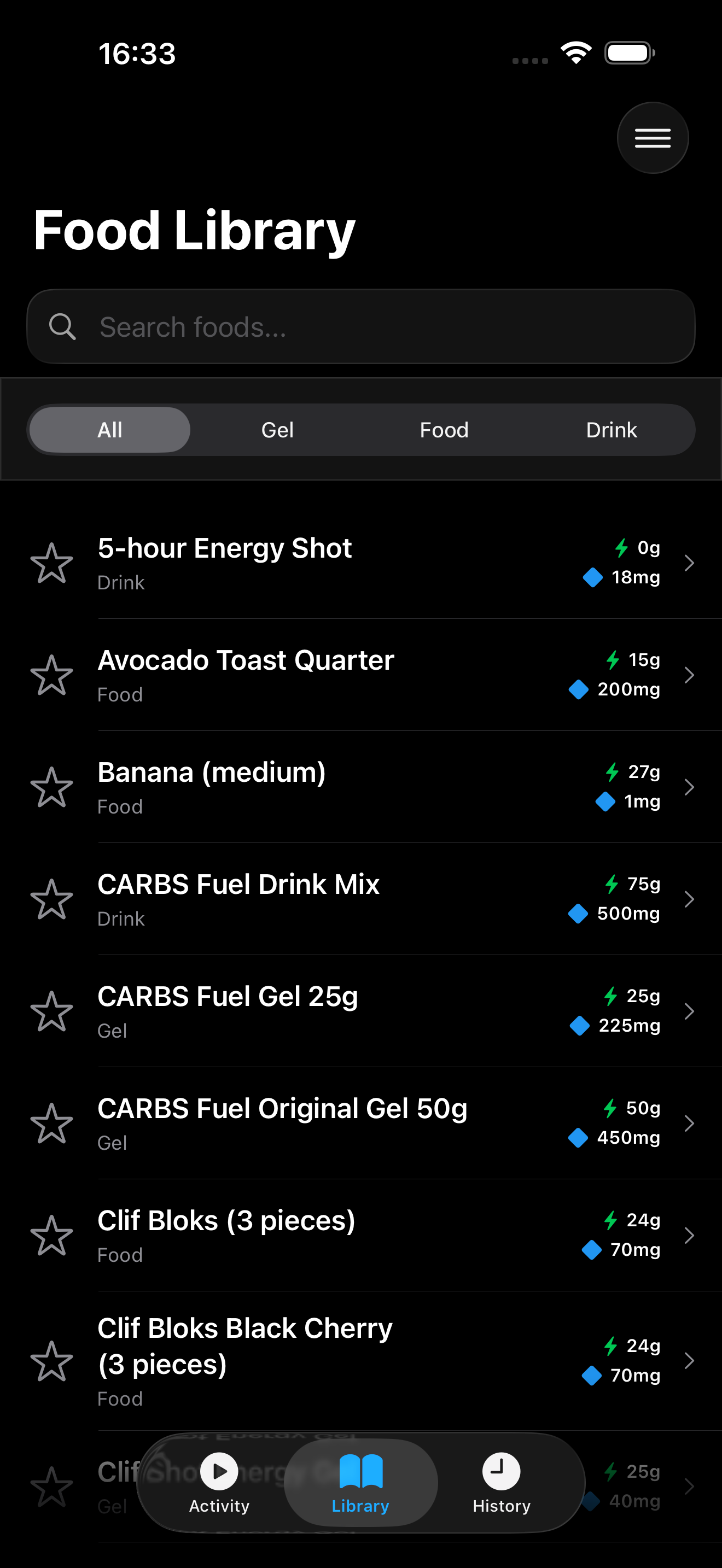 Browse and manage your custom food library. Pre-loaded with common endurance nutrition items for running, cycling, triathlon, and more. Add your own sport-specific items.
Active Session - Overview
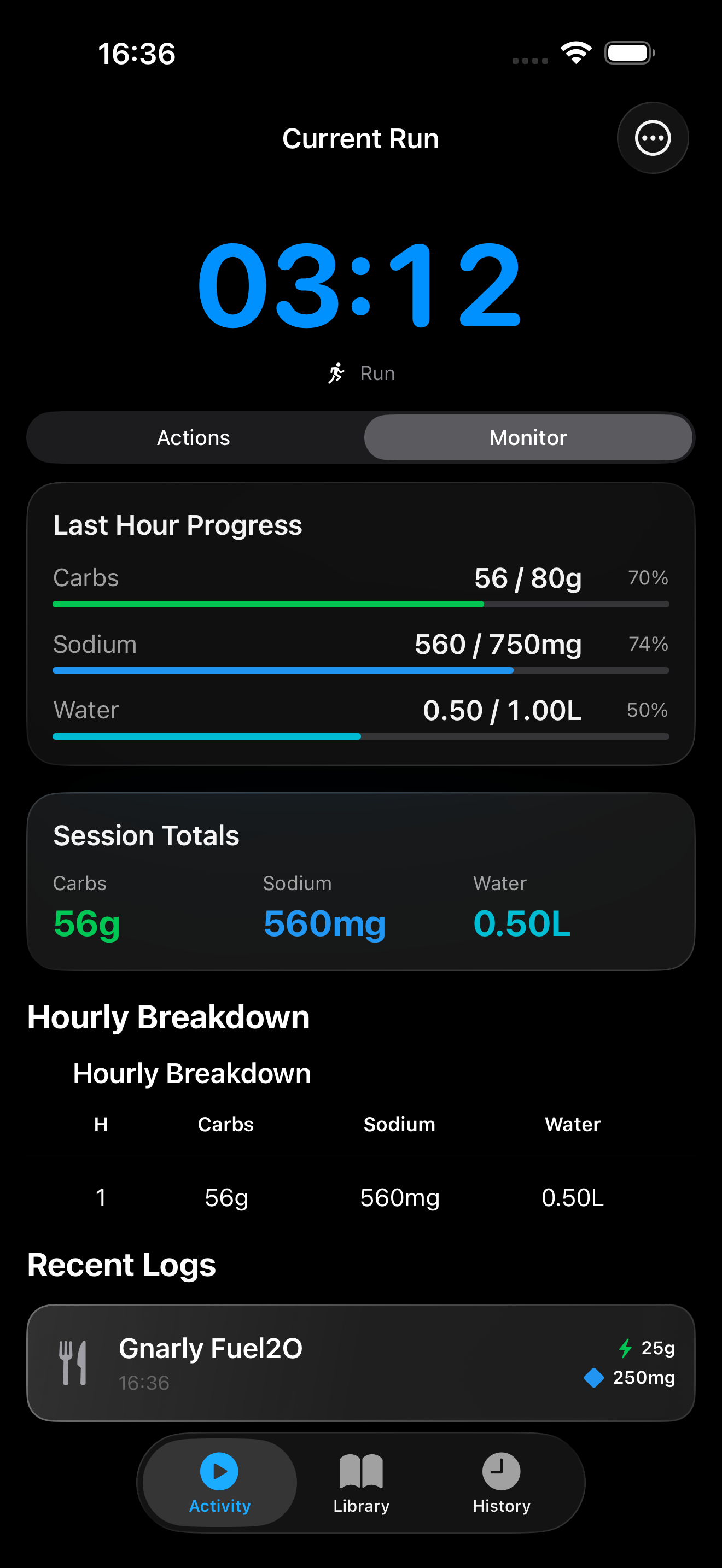 Track your real-time progress with visual indicators for carbs, sodium, and water consumption versus your hourly goals. Works for Running, Cycling, Triathlon, and Multisport activities.
Active Session - Hourly Breakdown
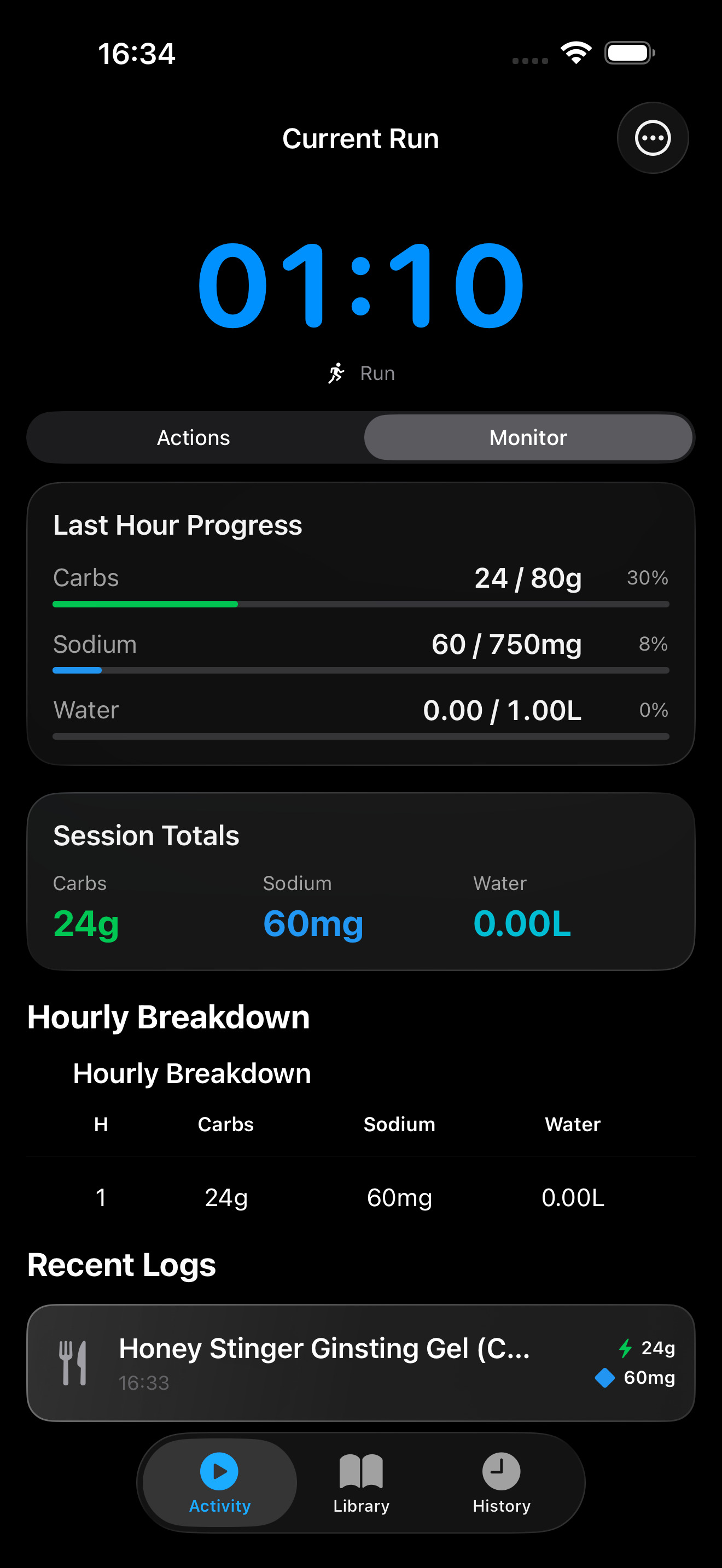 See exactly what you consumed each hour of your activity with detailed rates and totals. Particularly useful for long-distance events and multisport races.
Log Food
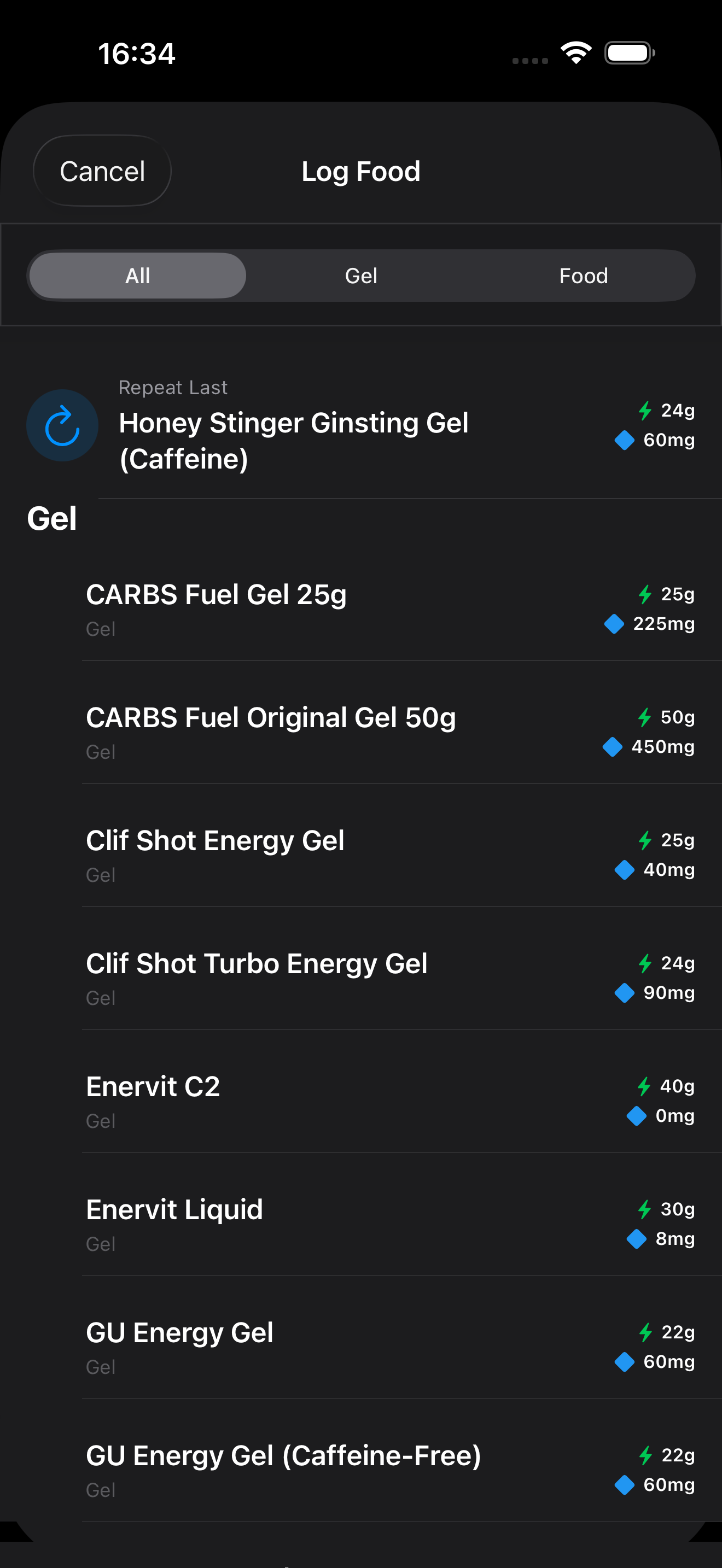 Quick food logging with categories for easy navigation. Tap any item to log it instantly.
Set Goals
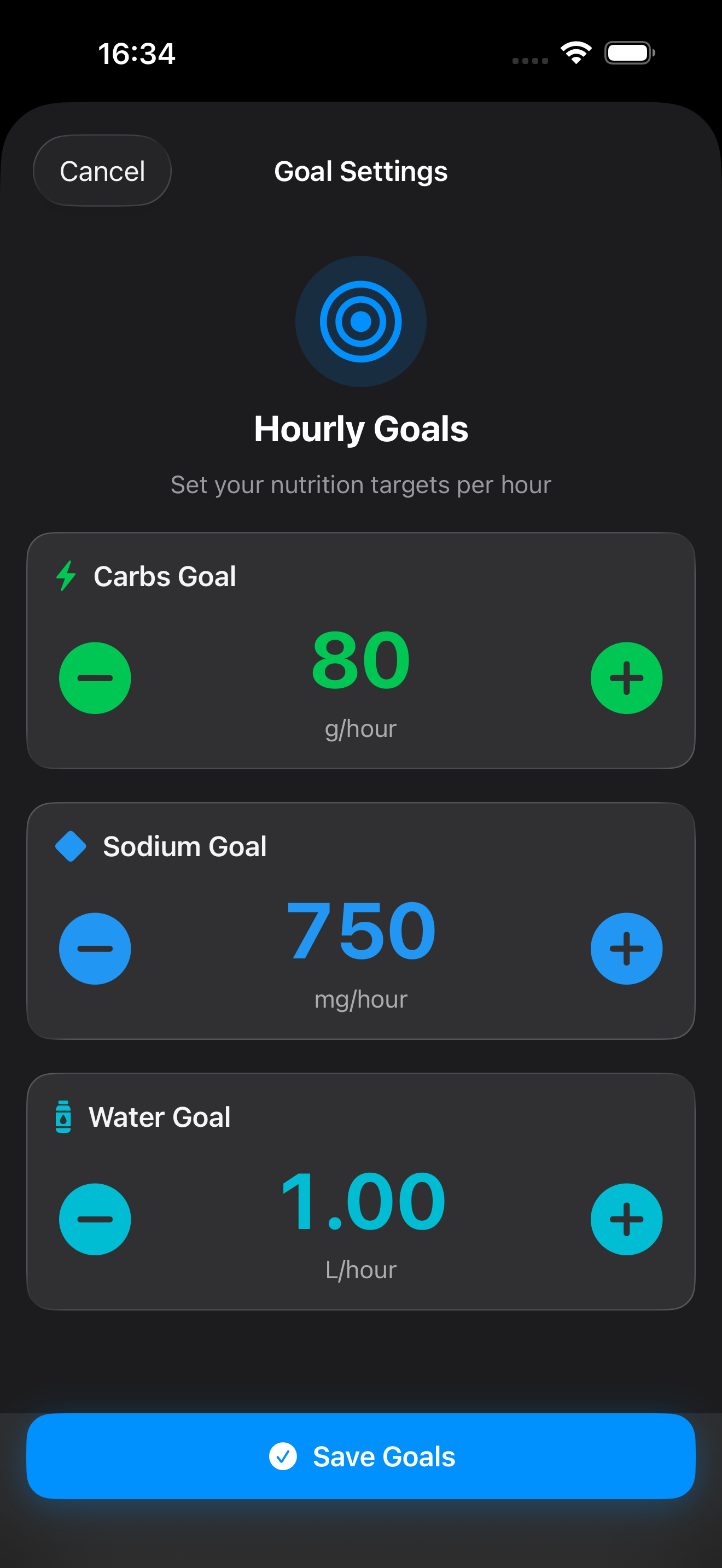 Customize your hourly targets for carbs, sodium, and water based on your needs and race conditions.
Export Report
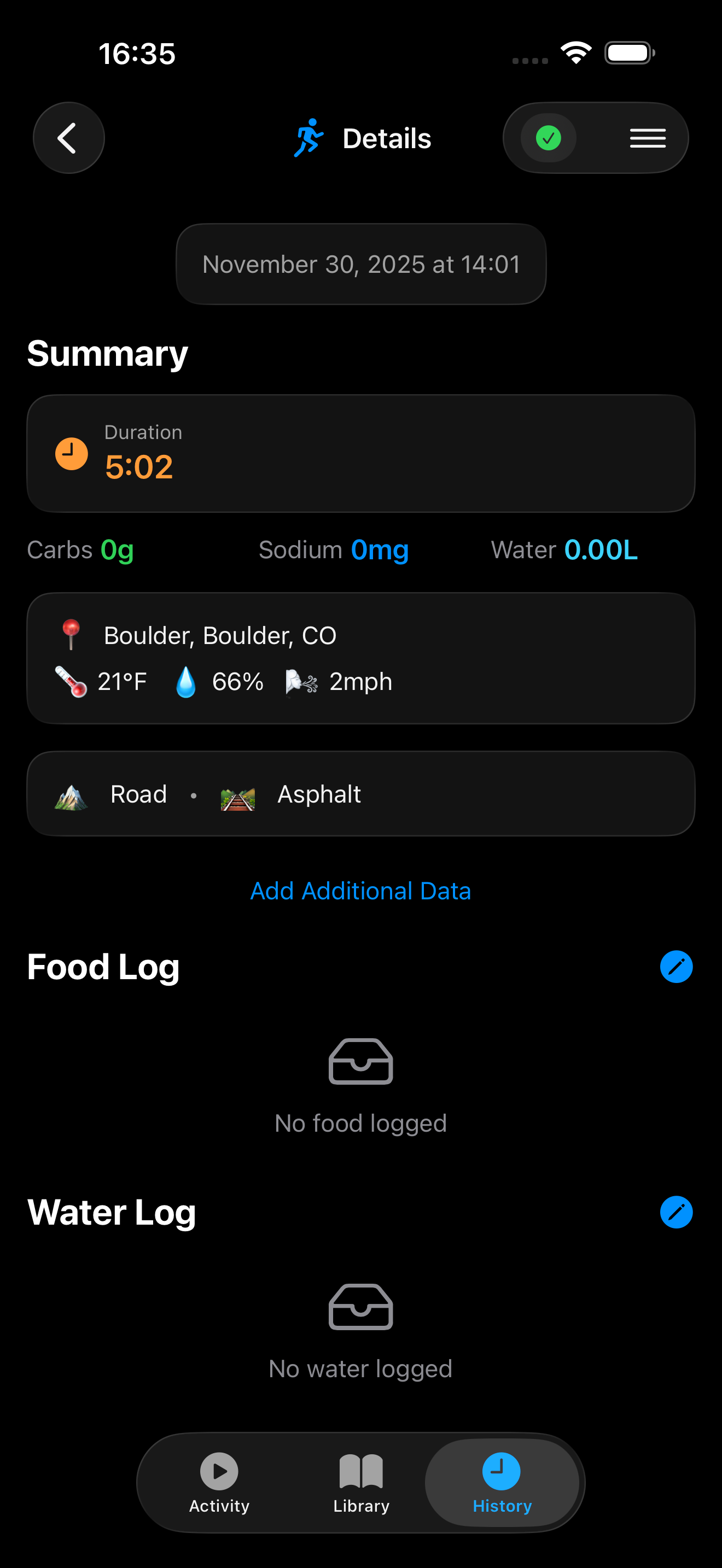 Review past activities with detailed statistics and export reports for analysis or sharing with coaches. Includes activity type and segment data.
Apple Watch App
Active Session - Progress
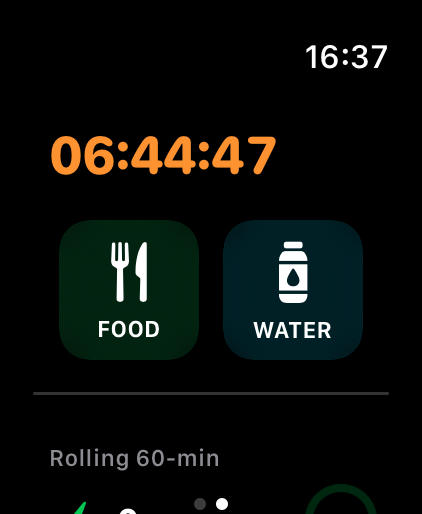 Glance at your wrist to see current progress during any endurance activity. Color-coded rings show carbs (green), sodium (cyan), and water (blue).
Key Features Highlighted
🎯 Visual Progress Tracking
Color-coded progress bars make it easy to see if you’re hitting your targets:
- Green for carbs
- Cyan for sodium
- Blue for water
⚡ Lightning Fast Logging
Designed for speed when you’re tired and moving. One tap logs an item with automatic timestamp.
📊 Detailed Analytics
Hourly breakdown shows consumption patterns throughout your run, helping you optimize your fueling strategy.
☁️ Seamless Sync
Start tracking on iPhone, continue on Apple Watch, export from either device. Everything stays in sync via iCloud.
How to Capture Your Own Screenshots
Want to show off FuelFlow in your race reports or social media? Here’s how to capture screenshots:
iPhone
- Press Volume Up + Side Button simultaneously
- Screenshot saves to Photos
- Find it in Photos app > Screenshots album
Coming Soon
More screenshots will be added as new features are released. Check back for updates!